Edit and preview your site
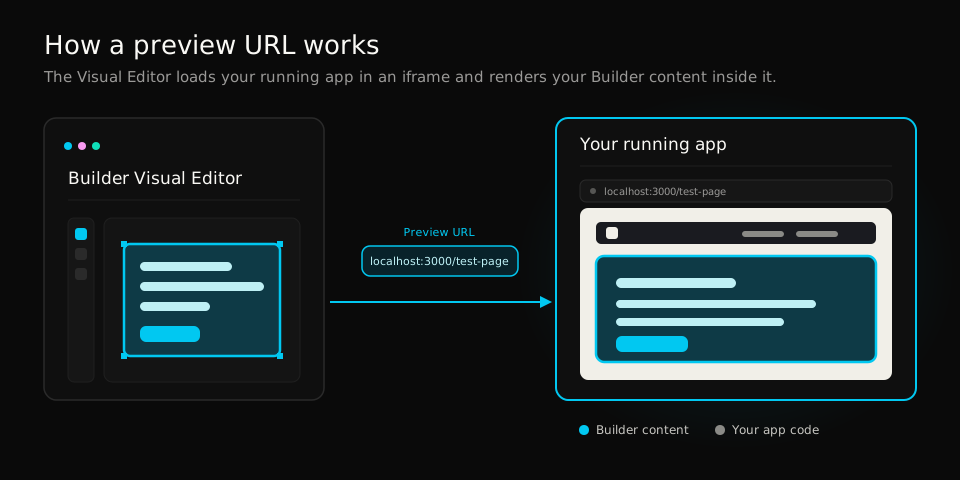
A preview URL tells the Builder Visual Editor where your app runs. When you open a content entry, the editor loads that URL in an iframe and renders your Builder content inside your real, running app, with your components, styles, layout, and data. You edit on top of the actual page instead of a generic canvas, so what you see in the editor matches what you ship.
Without a preview URL, the editor has no page to load, so the canvas stays blank or returns a 404. Setting the URL correctly is what connects the editor to your app. If the iframe still doesn't load after you set the URL, visit Getting your preview URL working.

If you are using the HTML API to serve Builder content, follow the steps in the Previewing content on your site section of Builder HTML API to set up previewing for your content.

Prerequisites
To get the most out of this document, you should have already completed the following:
- integrated Page building or Section building
Preview URLs work with all models
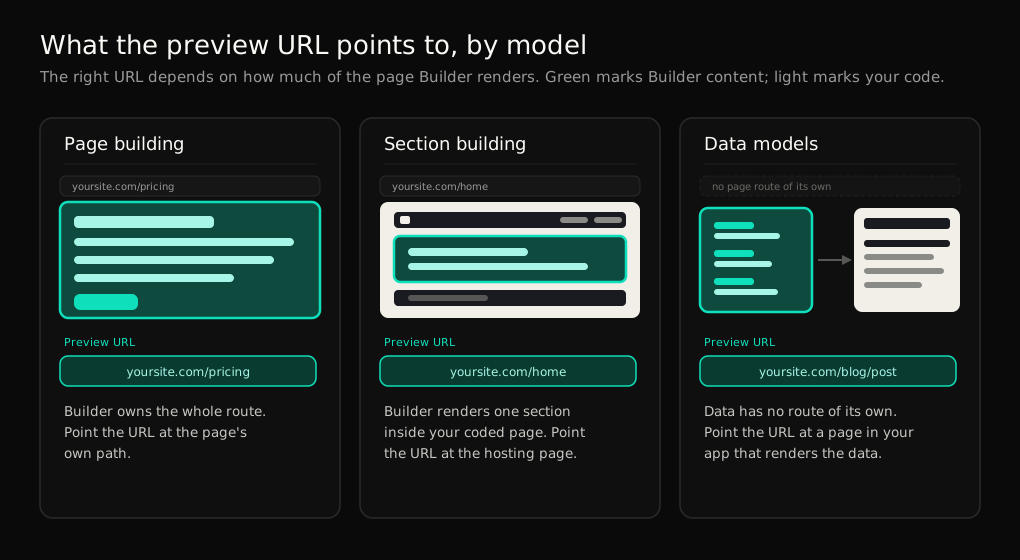
You can set a preview URL on a Page, Section, or Data model. The value you use depends on how much of the page Builder renders.
Page models
A Page model owns an entire route. Set the preview URL to the page's own path, such as yoursite.com/pricing. Builder renders the whole page, so the editor loads that path directly.
Section models
A Section model renders one section inside a page that your code controls. Set the preview URL to the page that hosts the section, such as yoursite.com/home. The editor loads your coded page — your nav, layout, and footer — and you edit the Builder section in place.
Data models
A Data model stores structured content, such as a blog post or a product record, and has no route of its own. Set the preview URL to a page in your app that renders the data, then add the code that live-updates it. For configuration examples, visit Live Previewing Data Model and Custom Fields.
Choose how to set your preview URL
Builder gives you three ways to set a preview URL. Choose the one that matches your task:
| Method | When to use it | Scope |
Set a preview URL on a model | You're building before launch and want every entry for a model to use the same URL, such as | All content for the model |
Override the preview URL host for your session | You want to preview a single entry that's live in production without changing the model. | One entry; resets on refresh |
Override the host in Developer Options | You're developing locally across many entries and don't want to affect teammates. | Your session only |
It is most common to set a preview URL on a model, but the other options provide flexibility for certain scenarios.
Set a persistent preview URL on a model
When you're still building out your site before going live, you need to work locally for extended periods with the convenience of a persistent preview URL. In this scenario, you can set the preview URL on the model so that all content using that model is automatically configured with the preview URL.
For example, if you're creating pages and need to preview all pages on localhost, you can set the preview URL on the Page model to localhost so that all Page content has that preview URL of localhost.
When your site is ready to go live, change the URL on the model to your staging or production URL.
The following video demonstrates opening a model and setting the URL.
If you change the preview URL of a model — for example, from a live URL that is in production to localhost — any content relying that model will no longer be live, and all parts of your app using that model will be affected.
If you need to set the URL on the model, you must be certain that no published content is using that model.
Set a temporary preview URL
When developing your app, you can set a temporary preview URL that resets upon refresh or if you leave the Visual Editor. To do so:
- Click on the Preview URL input within your content entry.
- Type your preview URL.
This method is helpful if you're working on a page that is currently in production but that you would like to develop further.
Override the preview URL host for your session
When you need to test out new changes or components in your local code across multiple content entries or models, it can be handy to override your preview URL host (e.g. from your production host, like your-site.com, to your localhost) for the duration of your session.
This can save you from entering a temporary URL repeatedly as you move across content models or entries, when you want to be connected to your localhost throughout.
To set a preview URL temporarily for just your session, without affecting other teammates, use the Developer Options as follows:
- In the Visual Editor, press
Cmd+Ctrl+aor⊞ Win+Ctrl+ato open the Developer Options. You must have Admin or Developer permissions to open this dialogue. - In the Override preview URL host field, enter the preview URL you'd like to use. This example uses
http://localhost:4200, but your URL might be different. - Click the X to close the dialogue.
This setting takes effect for the duration of your session, or until you remove it.
Setting the URL in Developer Options only affects the user who changes this setting, not other developers, teammates, or site visitors.
The following video demonstrates using Developer Options to set the preview URL to localhost.
Use a preview URL with static sites
When working on static sites, such as with Gatsby, Nuxt, or Next.js in static mode, there is some additional configuration you might need to do to get your preview URL to render previews.
By default, when creating a page and editing it in Builder, the editor and preview loads the URL for that page. For example, if you create a new page at /example but your static site has no such page, you could get a 404. There are two options for this scenario:
Add a Builder component to your 404 page
If you're getting a 404, add the Builder component to your 404 page to support previewing and editing.
On your 404 page in your code base, add <BuilderComponent> as in the following code snippet. In this example, if the page isn't found, BuilderComponent still returns a Builder page, so Builder gets the message it expects and returns a page.
Turn off preview for a specific URL
To turn off the default behavior of previewing and editing on the specific URL for a page, do the following.
- Go to Account Settings > Advanced Settings > Advanced.
- Toggle Reload preview on URL path change to the off position.
You can turn off this setting to load the preview and editor on your hardcoded URL; for example, /builder-editing, regardless of the current editor path.
The following video demonstrates how to turn off the Reload preview on URL path change setting:
Create Dynamic Preview URLs
You can add logic to Page and Section models to dynamically create the preview URL. For example, you can use a snippet like the below to preview blog posts:
You can customize the Dynamic Preview URL logic on a model so that you can use features such as targeting, custom fields, and localization while previewing. For more details, refer to Dynamic Preview URLs.


