Design system intelligence
Builder design system intelligence is Builder’s AI-powered approach to automatically discover, analyze, and map design system components, icons, and tokens.
Overview
Normally, when AI helps you build features, it creates generic code from scratch. But most companies have their own custom components and design systems that should be used to maintain consistency.

Design system intelligence uses a process called design system indexing that creates a catalog of your code's building blocks. The AI scans your codebase once, learns what components exist, how they work, and when to use them.

Implement design system intelligence
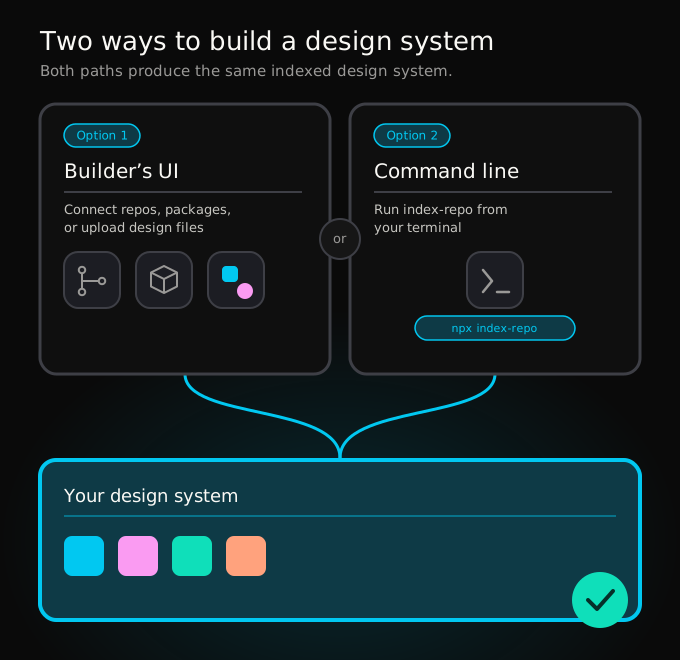
When creating a new design system, you have two options:
- Connect Builder Projects, public repositories, and accessible NPM packages through Builder's UI. Or, upload Figma designs and explanatory markdown files. For more details, visit Design System Intelligence with Builder's UI.
- Index your local repository with the Builder CLI
index-repocommand. For more details, visit Design system indexing.
Use your design system
Your design system can be used when creating a new Project in Builder Code1 or added to an existing Project.
To use your design system within a new Project:
- Go to your Projects page.
- Within the prompt at the top of the page, select the Design System dropdown.
- Choose your design system.
- Enter a prompt to create a new application and then click Build.
When creating this new Project, Builder uses your created design system to design the page, leveraging your styles and components.
To use your design system within an existing Project:
- Go to your Projects page.
- Click the three-dot menu in the top-right corner of the Project you want to add a design system to.
- Choose Project Settings.
- Select the Agent tab.
- Scroll down to where it says Design Systems.
- Choose your design system from the dropdown menu.
- Optionally determine whether or not you want to only allow design system tokens when editing styles in Design Mode by toggling the Style Strict Mode option.
- Click Save.
Tag your design elements within prompts
Tag your components and design tokens right in the Agent chat. For example, to reference a modal in your design system, use the @ symbol and start typing the name of the modal.
In the video below, the user instructs the agent to use the indexed Ion modal and specifies the colors to use by typing @, then filtering for the correct component and color.
Additional design system options
When creating a design system, there are several optional fields you can complete to provide additional context to the AI. Providing values to these fields improves the AI's output.
For the highest level of design and code fidelity, a repository connection is required. Without it, Builder is able to generate designs that match your design system, but is unable to leverage your own repository's components.

Additional context
Include any style notes, naming conventions, or brand guidelines not covered by your uploaded files. This is also a place to add more generalized advice to the AI on how to use your design system.
Add code context
If possible, connect your code repository directly. Builder's AI uses the code from connected repositories to identify and define styles and components.
For more details on how to connect your version control system to Builder, visit Projects setup overview.
You also have the option to provide a publicly accessible repository. This can be your own design system or an open-source system.
Manage design system indexes
To display component indexes available in your Organization or Space, go to the Design system intelligence page.
List indexed tokens and components
To list the tokens and components indexed within a design system:
- On the Design system intelligence page, click on one of the rows.
- Scroll through the components on the left, or use the search bar to find a component.
- Click the component listing to display the indexed tokens and components.
Each indexed token and component contains an AI generated overview of that item.
Delete a design system
You can remove indexed tokens and components by clicking on the three-dot menu icon next to a design system. Then, click Remove.


